Receive GeoJSONic webhook data with WebhookKit
Connect GeoJSONic to a public HTTPS WebhookKit endpoint, inspect an incoming POST, and read a received GeoJSON example.
To receive data from the GeoJSONic mobile app, create a WebhookKit endpoint and paste its public HTTPS receiving URL into a GeoJSONic destination. Then create a small new capture and inspect the incoming POST in your browser. This gives you a concrete request to work with before connecting the app to an automation or GIS workflow.
You need GeoJSONic on your iPhone, internet access for sending, and a browser for WebhookKit. Use a disposable note: location data, note text, headers, and any included media will be sent to and stored by the receiving service.
1. Create a public HTTPS receiving endpoint
Create a WebhookKit endpoint, then use Copy URL beside Webhook URL in its workspace. Keep that browser tab open to inspect requests.
Copy the receiving URL shown by the product. The browser address bar contains the workspace URL, which serves a different purpose. The receiving URL has this illustrative shape:
https://hooks.webhookkit.net/e/YOUR_PUBLIC_TOKEN
Replace the entire example with your copied URL. Use the public HTTPS URL for this setup so the phone can reach it over the internet. Keep its token private; anyone with that URL can send requests to the endpoint.
2. Configure the GeoJSONic destination
In GeoJSONic's New destination form:
- Give the destination a recognizable label, such as
WebhookKit. - Paste the copied HTTPS receiving URL into the URL field.
- Leave the optional authentication secret empty for this capture test.
- Turn Send original media off for the first test.
- Enable Auto-send new captures. Leave the optional tag filter empty, or choose a tag you will apply to your test capture.
- Tap Save.
The Authentication section configures an outgoing request header. Adding an Authorization value there does not make WebhookKit enforce that value as ingestion authentication; it can be captured as a header. Do not enter a WebhookKit management credential.
Start without original media to keep the request small and avoid sending photos, video, audio, or embedded metadata unnecessarily. GeoJSONic's form warns that original media can produce a large upload. Check the current payload limits before testing media.
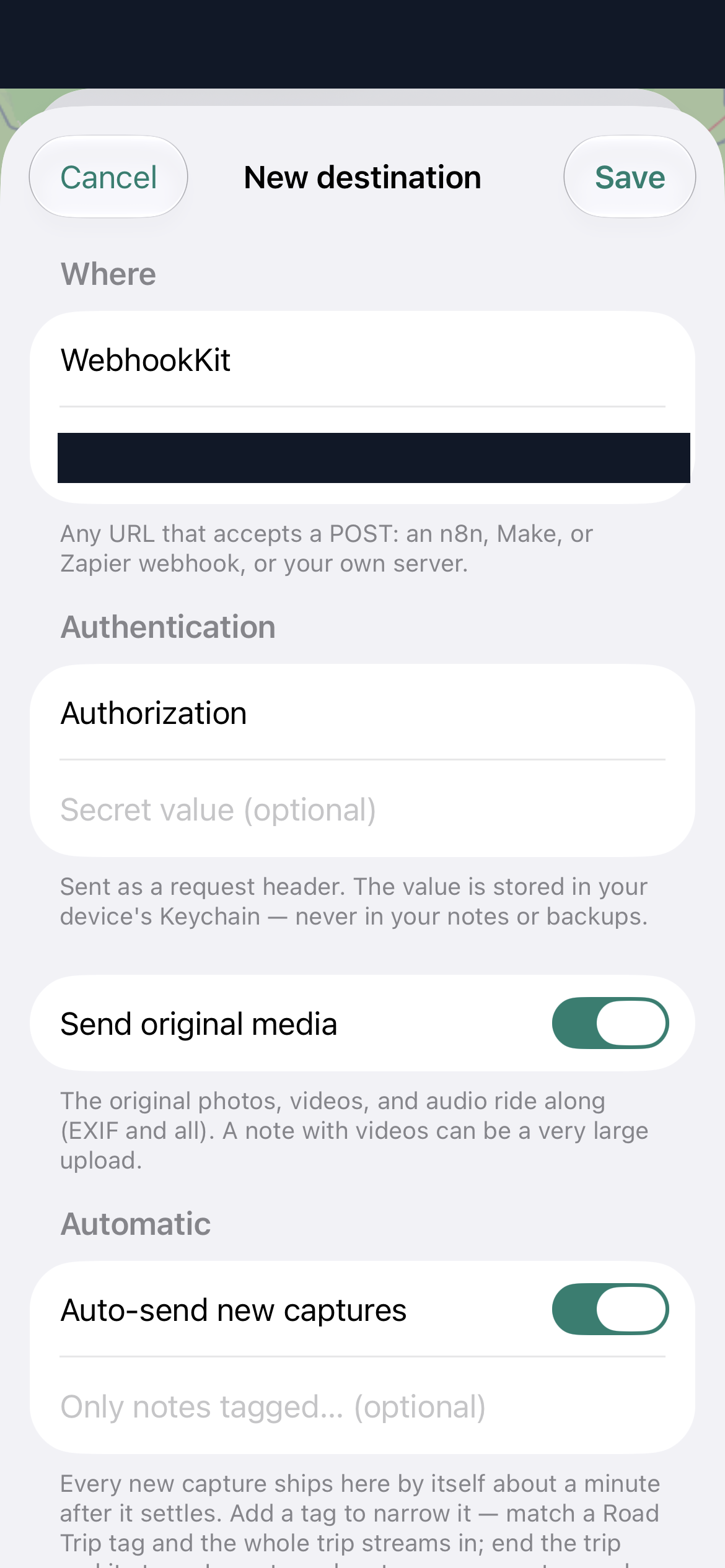
Supplied configuration screenshot; the receiving URL is masked. Send original media is enabled in this capture. For the first test described here, switch it off.
3. Create a small new capture
After saving the destination, create a new GeoJSONic capture with a harmless, distinctive title so you can recognize it in the received data. If you configured a tag filter, include that tag. Keep the phone connected to the internet while checking delivery.
The auto-send helper text in the supplied form describes sending about a minute after a capture settles. Allow time for that process; this is the app's stated behavior, not a measured delivery guarantee.
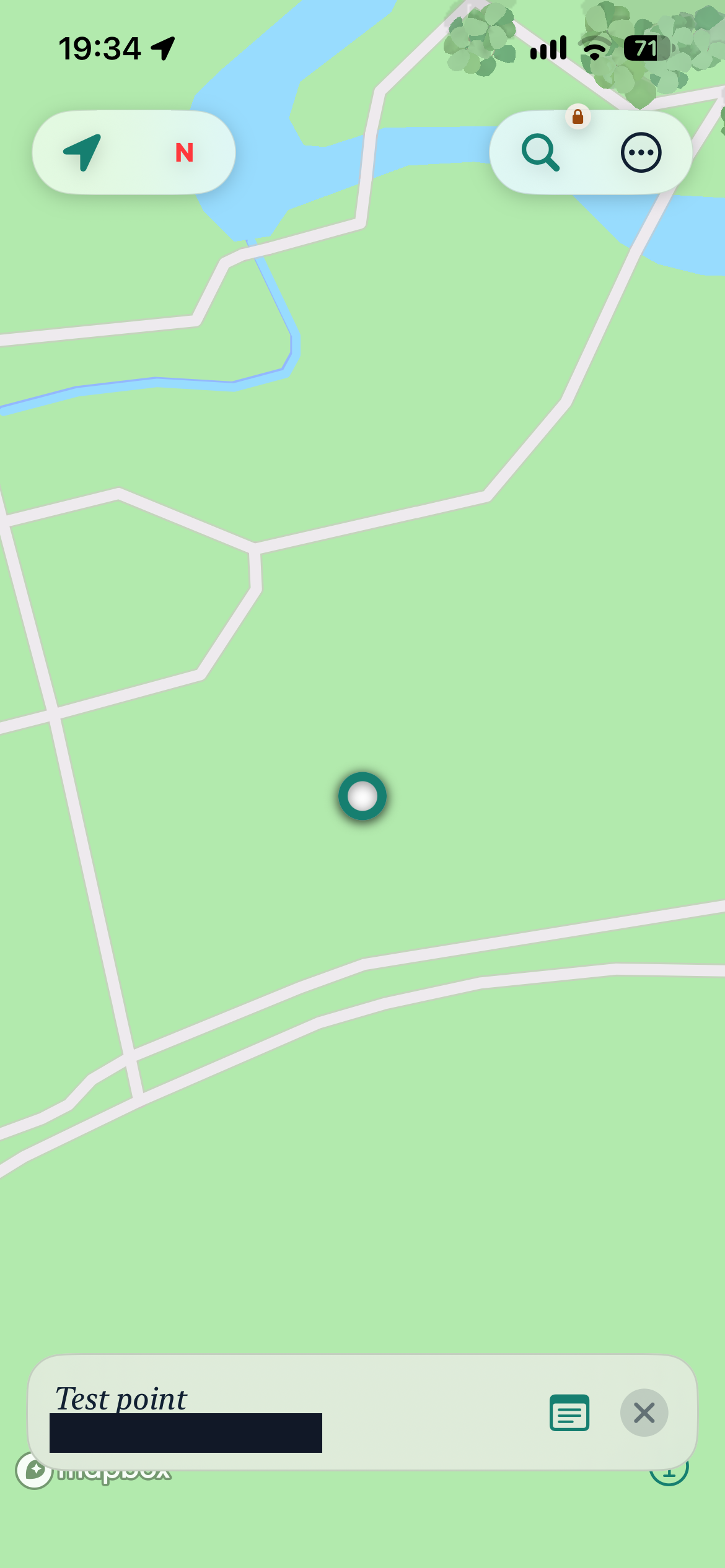
Supplied map screenshot showing a selected note. The location label is masked. This is a separate capture from the configuration and request screenshots; it does not establish that this mapped point produced the request below.
4. Inspect the incoming POST
Return to WebhookKit and select the arriving request. Check the method, received time, response status, headers, and body. Compare your distinctive title and the received time with your own test to identify the request.
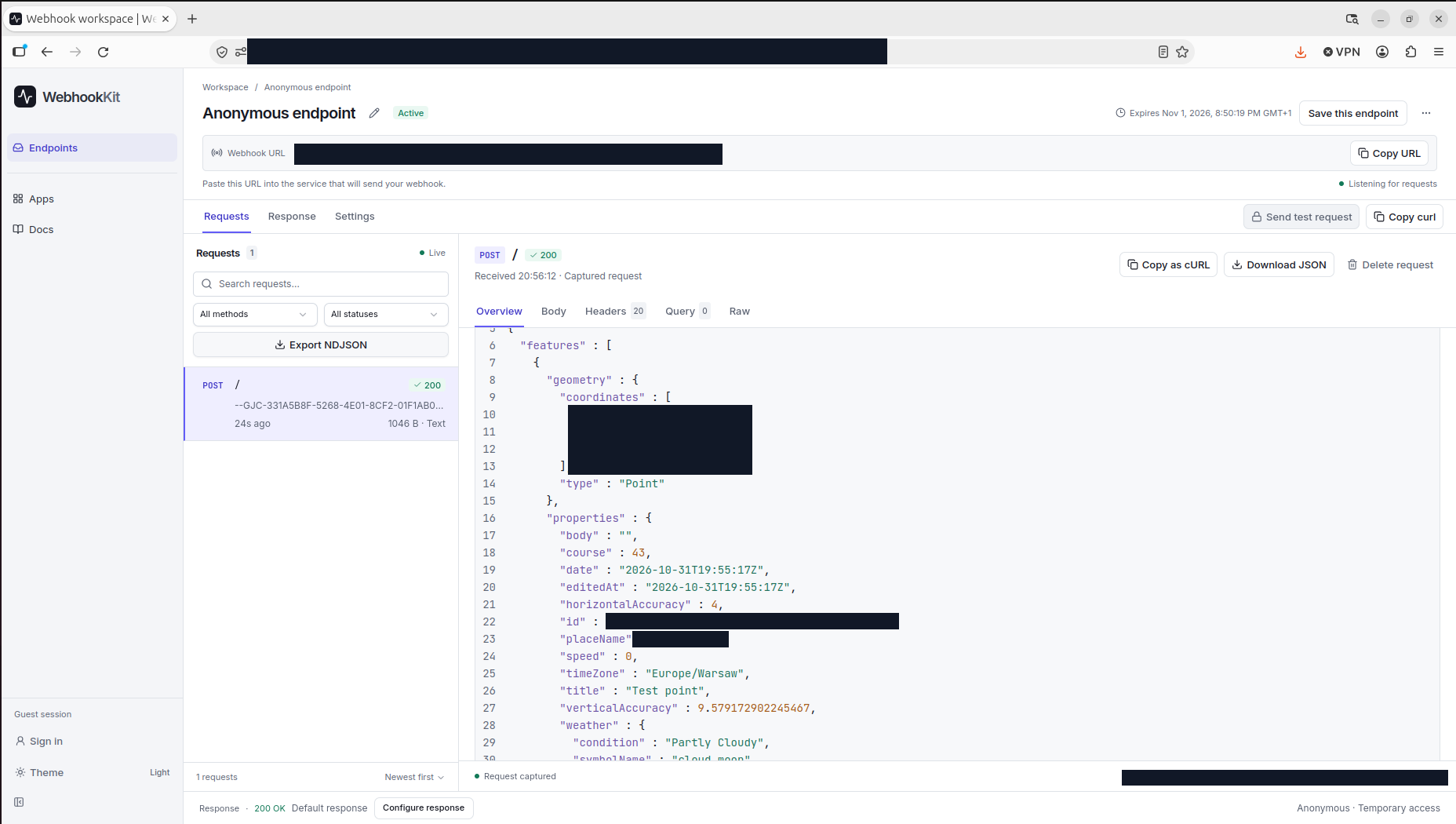
Supplied receiver screenshot showing one captured POST and a 200 response. URLs, identifiers, and location values are masked. Open the full-size screenshot to inspect the desktop interface.
The screenshot shows a received request and an HTTP 200 response. That establishes the receiver response for this capture; it does not establish that coordinates were validated, media were extracted, or a downstream GIS workflow processed the note. These are user-supplied screenshots, rather than a live integration test performed for this article.
If the body appears as text
The request-list preview in the screenshot starts with a boundary-like string, and the request is classified as Text. A request can contain GeoJSON inside a larger body, so valid geographic data does not mean the complete HTTP body is one JSON document.
Open Headers and inspect the actual Content-Type, then use Body or Raw to examine the content. If it is multipart, preserve the boundaries when inspecting the original request and extract just the relevant JSON portion before passing it to a JSON parser. WebhookKit captures the body; this inspector does not automatically extract multipart attachments. A text view alone is not evidence that capture failed.
Read the received GeoJSON
The following is the complete user-provided received GeoJSON example, with its original values preserved. It was supplied separately as JSON; it does not establish the full HTTP envelope or multipart part names.
{
  "features": [
    {
      "geometry": {
        "coordinates": [21.933216500000015, 50.46341129999998, 221],
        "type": "Point"
      },
      "properties": {
        "body": "",
        "course": 43,
        "date": "2026-10-31T19:55:17Z",
        "editedAt": "2026-10-31T19:55:17Z",
        "horizontalAccuracy": 4,
        "id": "2E05E27A-14EB-4EBC-8989-84DA5E1C761C",
        "placeName": "Stany",
        "speed": 0,
        "timeZone": "Europe/Warsaw",
        "title": "Test point",
        "verticalAccuracy": 9.579172902245467,
        "weather": {
          "condition": "Partly Cloudy",
          "symbolName": "cloud.moon",
          "temperatureC": 5.874568939208984
        }
      },
      "type": "Feature"
    }
  ],
  "type": "FeatureCollection"
}
The outer FeatureCollection contains one Feature. Its geometry is a Point; its properties contain the note and context data.
GeoJSON positions use longitude, latitude order. In this example, 21.933216500000015 is longitude and 50.46341129999998 is latitude. RFC 7946 defines an optional third coordinate as height in meters relative to the WGS 84 reference ellipsoid; the third value here is 221. Keep this order when passing the point to another system, even if that system's interface asks for latitude first. See RFC 7946, position definition.
For this particular event, properties.title is Test point, body is empty, and placeName is Stany. The properties also include timestamps, a time zone, accuracy values, course, speed, an identifier, and a nested weather object. Treat these as observed fields in this example. Their presence does not define mandatory fields for every GeoJSONic delivery, and the GeoJSON standard does not specify units for these custom properties.
When building your own receiver, use the captured request's actual content type and structure to decide how to parse it, then handle the GeoJSON feature and its properties. The JSON above provides readable data to inspect without relying on the small text in the desktop screenshot.
Troubleshoot the first delivery
| What you see | What to check |
|---|---|
| No request arrives | Confirm you saved the destination, enabled auto-send, and created a new capture afterward. Check connectivity and any tag filter. |
| Still no request | Copy the current Webhook URL again and check the endpoint's active state and expiry. Do not use the browser workspace URL as the destination. |
| HTTP 413 | The complete request body exceeds the receiver's size limit. Disable original media, try a smaller capture, and check the current payload limits. Multipart framing and attachments count toward total size. |
| Body shows text or boundaries | Inspect Content-Type and Raw before treating the entire body as JSON. Extract the GeoJSON portion if the request is multipart. |
| HTTP 200, but no map or automation result | Receiving the request is one step. Any GIS import, validation, or automation needs its own processing and checks. |
Once a small capture arrives, keep that request as your reference for the next integration step. You can inspect more of its structure using WebhookKit's request inspection tools, then build your receiver around the format you actually received.
Inspect your next webhook with WebhookKit.